

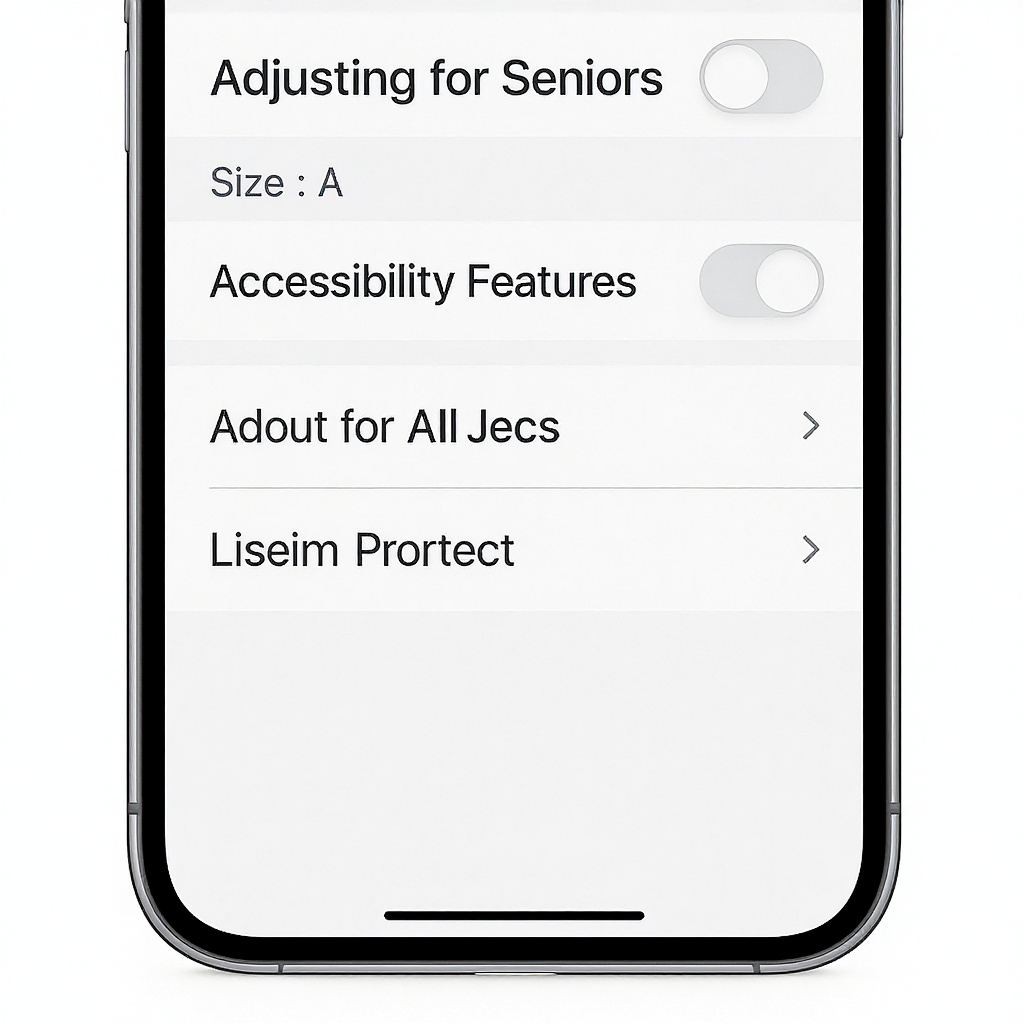
Welcome back! You’ve already learned how to power your phone on, charge it, and navigate the home screen. Then, in the last lesson, you mastered the essential gestures: tapping, swiping, scrolling, and zooming. That’s a big step forward!
Today’s lesson is all about making your phone comfortable for you.
Many seniors struggle with phones not because they’re too complicated, but because the text is too small, the sounds are too quiet, or the screen feels overwhelming. The good news? Your Android phone has built-in settings to make everything easier to see, hear, and use.
By the end of this lesson, you’ll know how to:
- Make text larger and easier to read
- Adjust your phone’s volume for calls, notifications, and media
- Turn on accessibility features designed specifically to help seniors use their phones with confidence
Step 1: Adjusting Text Size
Let’s start with text size.
- Open your Settings app (it looks like a little gear).
- Scroll down until you see Display or Accessibility (this can vary slightly depending on your phone model).
- Tap Font Size or Text Size.
- Slide the bar to increase or decrease the size of the text.
👉 Quick Tip: Adjust until the text feels comfortable to read without straining your eyes. Bigger is better if it makes you feel confident.
Some phones also let you adjust Display Size, which makes everything on your screen bigger — not just the words, but also the buttons and icons.
Step 2: Adjusting Volume
Next, let’s talk about sound. Many seniors miss calls or texts simply because the phone isn’t loud enough — but that’s an easy fix.
On the side of your phone, you’ll see volume buttons — usually two little buttons together.
- Press the top button to increase the volume.
- Press the bottom button to decrease it.
When you press the buttons, you’ll see a little slider appear on your screen. This controls volume in different areas:
- Ringtone/Calls: How loud your phone rings.
- Media: How loud videos, music, and apps sound.
- Notifications: The sound for text messages or alerts.
- System: Small sounds like keyboard clicks.
👉 To control these separately:
- Press a volume button.
- Tap the little settings icon next to the volume bar.
- You’ll see all the different sliders — move each one to where you want it.
👉 Quick Tip: If you wear hearing aids, set your ringtone and notifications louder so you don’t miss calls.
Step 3: Accessibility Features
Android phones include accessibility settings to make life easier. Let’s look at three useful ones for seniors:
- Magnification
This lets you zoom in on anything, anytime.
- Go to Settings > Accessibility > Magnification.
- Turn it on.
- Now, you can triple-tap the screen (tap quickly three times) to zoom in, then drag with two fingers to move around. Triple-tap again to zoom out.
- High Contrast & Bold Text
Some seniors find it easier to read when the text is bold and the background is high contrast.
- In Accessibility > Display, look for options like Bold Text or High Contrast Mode.
- Turn them on and see if it feels easier on your eyes.
- Screen Reader (TalkBack)
If you have trouble reading text, your phone can actually read things aloud.
- Go to Accessibility > TalkBack.
- Turn it on.
Now, when you tap on something, your phone will say it out loud. (This is more advanced — try it if you want extra support.)
Step 4: Practice Time
Let’s do a quick practice:
- Open your Settings app.
- Adjust the Font Size until you can read it comfortably.
- Use your volume buttons to make your ringtone louder.
- Try turning on Magnification and test zooming in on your home screen.
Take your time. Remember, nothing you do here will break your phone. These settings are here to make your phone fit you.
Real-Life Example
I once worked with a gentleman named Harold. He thought he’d never be able to use his phone because “the words are too small.” In five minutes, we increased the font size and turned on bold text. His whole face lit up. He said, “I thought I was too old for this — turns out my phone was just too small!”
The truth is, most seniors don’t need a different phone. They just need the right adjustments.
Troubleshooting Tips
- The text is too big and doesn’t fit: Slide the font size back down a little until it looks balanced.
- I still can’t hear my phone ring: Make sure the ringtone volume is turned up separately from media volume.
- I turned on something I don’t like: Don’t panic — just go back into Settings and switch it off.
Wrap-Up & Next Steps
So today you learned how to:
- Make text bigger and easier to read
- Adjust your phone’s volume for calls, notifications, and apps
- Use accessibility tools like magnification, bold text, and high contrast mode
This is a big win, because now your phone will feel comfortable and senior-friendly.
Your take-action tool for today:
- Spend 5 minutes adjusting your text size until it feels perfect.
- Test your ringtone volume by calling your phone from another device.
- Try turning on Magnification and zooming in on your home screen.
In the next module, we’ll begin exploring the real heart of your phone: communication. You’ll learn how to make and receive calls, send messages, and connect with family using video chat.
Congratulations — you’ve finished Module 1! You now know how to turn on your phone, navigate, control gestures, and adjust it to suit your needs. That’s a huge step toward confidence and independence.
I’ll see you in Module 2, Lesson 1: Making and Receiving Phone Calls.