

Title: What Are Apps and How to Download Them
Welcome to Module 3! You’ve already mastered calling, texting, and even video chatting with your loved ones. That’s a huge accomplishment.
Now we’re moving into another exciting part of your phone: apps.
Apps are what make your smartphone truly smart. They turn your phone into a tool for almost anything you can imagine — from maps and games to shopping and health tracking.
By the end of this lesson, you’ll understand:
- What apps are and why they’re important
- How to find and open the Google Play Store
- How to search for and download an app
- How to keep your apps safe and updated
Step 1: What Are Apps?
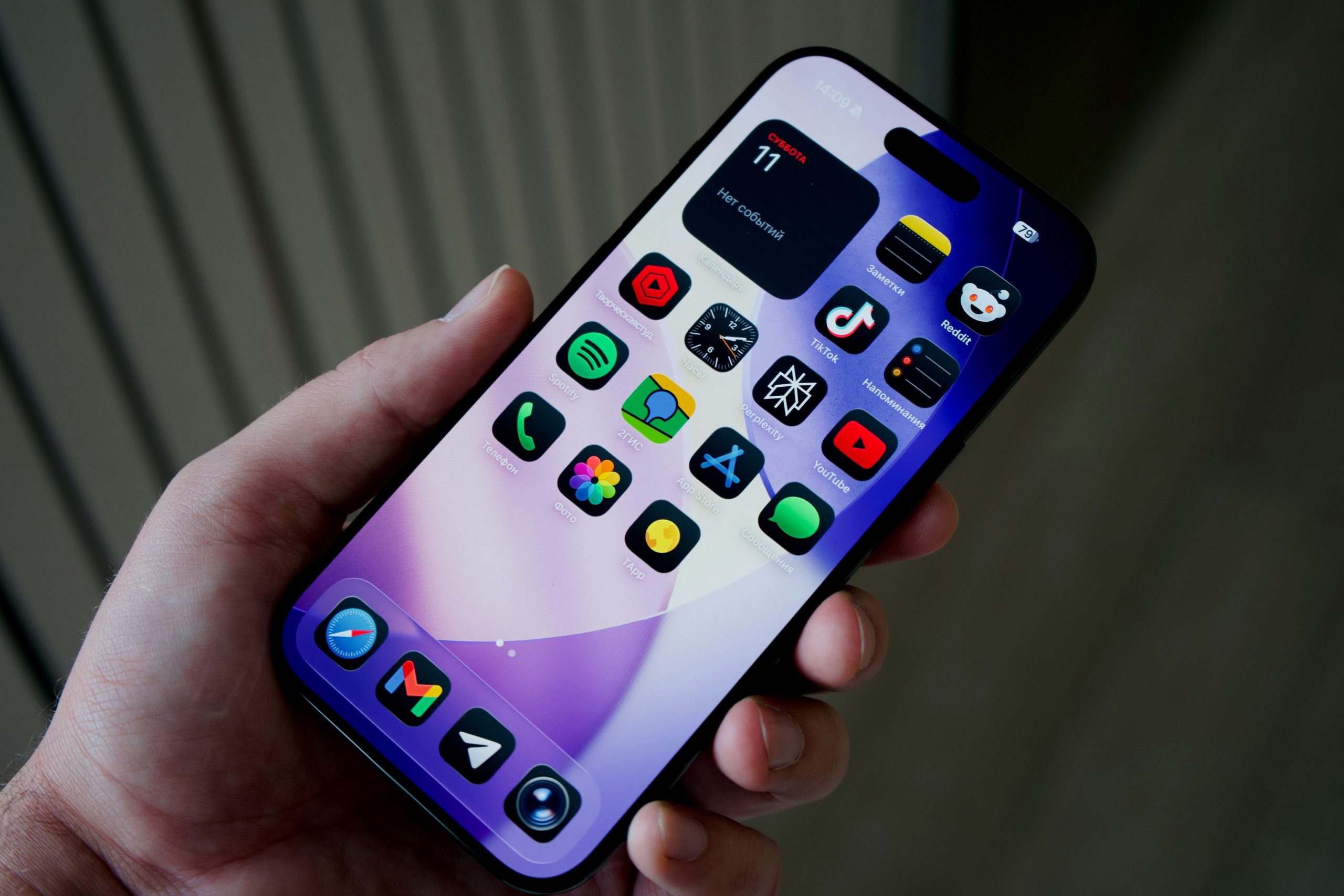
Think of apps (short for “applications”) as little helpers that live inside your phone.
- Want to check the weather? There’s an app for that.
- Want to read the news? There’s an app for that too.
- Want to play a card game, order groceries, or track your steps? Apps make it possible.
Your phone comes with many apps already installed — like the Phone app, Messages, Camera, and Contacts. But you can add more whenever you need them.
👉 Quick Tip: Each app has its own icon (a little picture). Tapping the icon opens the app instantly.
Step 2: Finding the Google Play Store
On an Android phone, the place to download apps is called the Google Play Store.
- Look for a colorful triangle icon on your home screen or in your app drawer. It may be labeled Play Store.
- Tap it once to open.
Inside, you’ll see categories like Top Charts, Games, Entertainment, and more. But the easiest way to find an app is by using the search bar at the top.
Step 3: Searching for an App
Let’s say you want to download WhatsApp for video calling.
- Open the Play Store.
- Tap the search bar at the top.
- Type WhatsApp using the keyboard.
- Tap the magnifying glass or “Enter.”
You’ll see a list of results. Apps usually show the name, the developer (the company that made it), and a star rating.
👉 Quick Tip: Always choose the app with the official name and high ratings. For WhatsApp, look for WhatsApp LLC.
Step 4: Downloading and Installing
Once you’ve found the app you want:
- Tap on the app name.
- Tap the green Install button.
- The app will begin downloading. You’ll see a progress bar.
- When finished, the button will change to Open. Tap it to launch the app.
The app’s icon will also appear on your home screen or in your app drawer for easy access later.
👉 Quick Tip: Apps are usually free, but some may cost money. If there’s a price listed instead of “Install,” that means it’s a paid app.
Step 5: Updating Your Apps
From time to time, apps need updates to fix bugs or add new features.
- Open the Play Store.
- Tap your profile picture (top right corner).
- Tap Manage apps & device.
- If updates are available, you’ll see a button that says Update All.
👉 Quick Tip: Keeping apps updated makes them run smoother and helps keep your phone safe from viruses.
Step 6: Staying Safe with Apps
Not all apps are trustworthy. Here are some safety tips:
- Download only from the Play Store. Don’t install apps from strange websites.
- Check the ratings. Apps with 4 or 5 stars are usually reliable.
- Read reviews. If many people complain, skip that app.
- Avoid giving unnecessary permissions. For example, a calculator app shouldn’t ask for access to your photos.
Step 7: Practice Together
Let’s do a little practice exercise:
- Open your Google Play Store.
- Search for Google Maps (if you don’t already have it).
- Tap Install and wait for it to finish.
- Tap Open and explore the app.
Now you’ve successfully downloaded your first app!
Real-Life Example
One of my students, Linda, loved playing card games but didn’t know she could use her phone for that. Once she learned how to download apps, she installed Solitaire and Sudoku. Suddenly, waiting at the doctor’s office became fun instead of boring.
Another student, Frank, used apps to track his daily steps. It motivated him to take walks every morning, and he told me he felt healthier and more energetic within weeks.
That’s the beauty of apps — they can improve your daily life in simple ways.
Troubleshooting Tips
- I can’t find the Play Store: Swipe up from your home screen to open the app drawer. It’s usually in there.
- The app won’t download: Make sure you’re connected to Wi-Fi or have enough storage space.
- I don’t see the app after installing: Check your app drawer — sometimes new apps don’t appear on the main screen automatically.
- It asked me for payment info: Some apps are paid. If you don’t want to add a payment method, choose free apps only.
Wrap-Up & Next Steps
Let’s recap what you learned today:
- Apps are little helpers that give your phone new powers.
- The Google Play Store is where you find and download apps safely.
- You can search, install, and open apps with just a few taps.
- Updating apps keeps them safe and working smoothly.
Your take-action tool for today:
- Open the Play Store and search for one free app that interests you — it could be a game, a news app, or a tool like Google Maps.
- Download it and practice opening it from your home screen.
In the next lesson, we’ll explore essential everyday apps — the ones most seniors find the most useful for daily life, like maps, calendar, and a notes app.
Great job today — I’ll see you in Module 3, Lesson 2: Essential Everyday Apps (Maps, Calendar, Notes).