

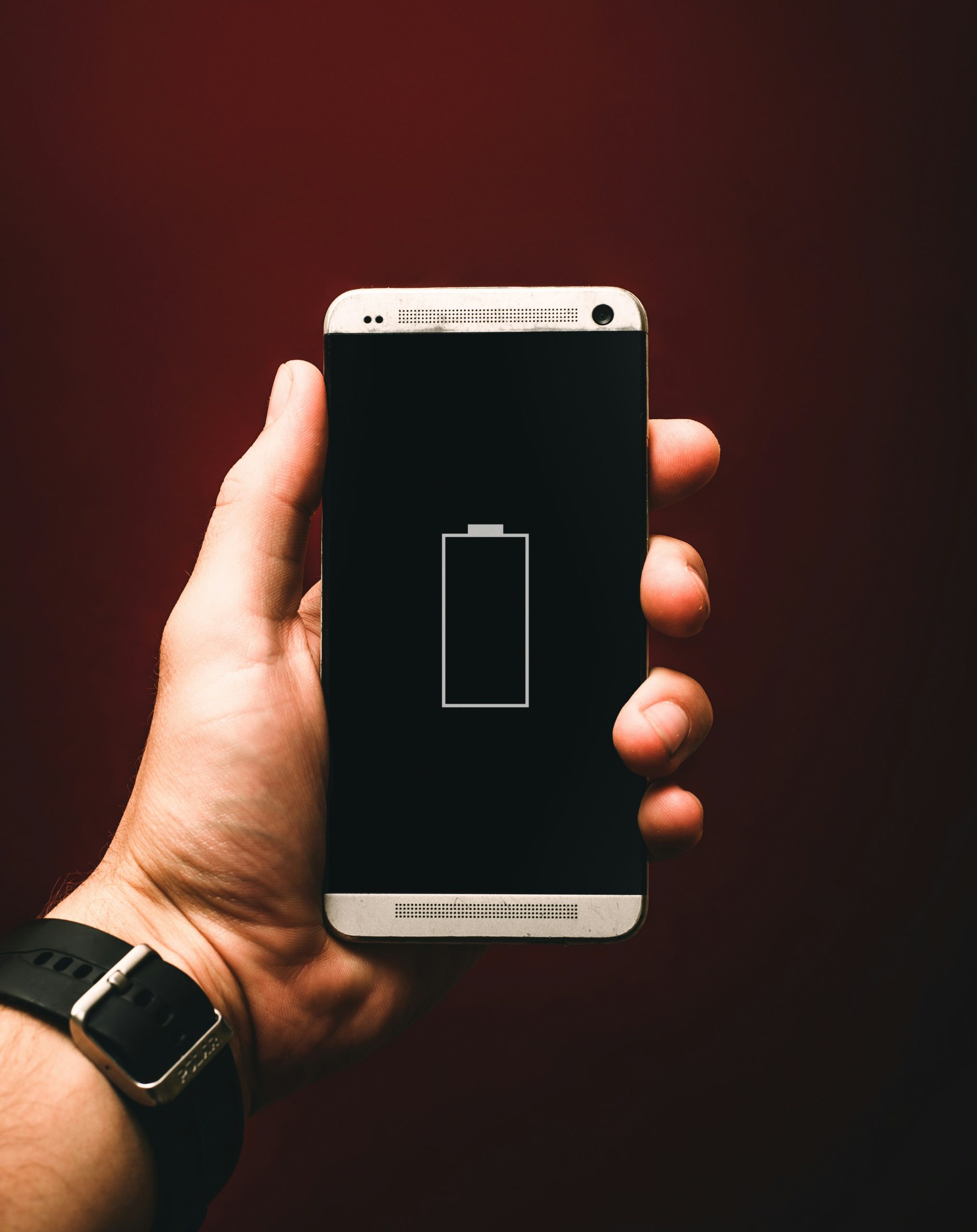
Title: Battery and Charging Tips
Welcome back! In our last lesson, you learned how to manage notifications, so your phone alerts you only when you want it to.
Today, we’ll cover something every smartphone user needs to know: battery and charging tips. A well-charged battery means your phone is ready when you need it — whether for a call, a photo, or an emergency.
By the end of this lesson, you’ll know how to:
- Check your battery level
- Charge your phone correctly
- Make your battery last longer
- Troubleshoot common charging issues
Step 1: Checking Battery Level
Your battery level is always shown at the top of your screen as a small icon.
- A full green icon = charged.
- A half-filled icon = medium.
- A nearly empty icon (often red) = low.
👉 Quick Tip: You can swipe down from the top of the screen to see the exact percentage.
Step 2: Charging Your Phone
To charge your phone:
- Plug the small end of the charging cable into the bottom of your phone.
- Plug the other end into a wall adapter or power source.
- A charging symbol (lightning bolt or moving battery icon) will appear.
How Long to Charge
- Most phones reach full charge in 1–2 hours.
- It’s fine to unplug once the battery reaches 100%.
👉 Quick Tip: You don’t have to wait until your phone is completely dead to charge it. In fact, charging when the battery is around 20–30% is healthier.
Step 3: Making the Battery Last Longer
Here are simple ways to extend your phone’s daily battery life:
- Lower brightness: Swipe down and move the brightness slider left.
- Close unused apps: Tap the square or recent apps button, then swipe apps away.
- Turn off Wi-Fi, Bluetooth, or GPS when not needed.
- Use Battery Saver mode: Found in Settings > Battery.
👉 Quick Tip: If your phone drains quickly, check which apps use the most battery in Settings > Battery.
Step 4: Troubleshooting Charging Issues
Sometimes charging doesn’t work as expected. Here’s what to check:
- Phone not charging: Make sure the cable is fully plugged in on both ends.
- Charging very slowly: Try using the original charger that came with your phone. Some cheaper cables charge slowly.
- Phone feels hot while charging: Remove any thick case and place the phone on a flat surface.
- Battery drains too fast: Restart your phone and check for apps running in the background.
Step 5: Charging Safety
A few safety reminders:
- Always use good-quality chargers. Poor chargers can damage your phone.
- Don’t charge your phone under a pillow or blanket — it needs air to stay cool.
- Avoid letting the battery go completely dead too often.
Step 6: Practice Together
Let’s practice a few battery basics:
- Check your battery percentage right now.
- Plug in your phone and look for the charging icon.
- Lower your screen brightness to save power.
- Turn on Battery Saver mode in Settings.
These simple steps will keep your phone ready when you need it most.
Real-Life Example
One of my students, Bob, used to let his phone die completely every day before charging it overnight. He complained that his battery didn’t last. Once he learned to charge it at 30% instead of 0%, his phone stayed healthy much longer.
Another student, Grace, kept her brightness at maximum all the time. After lowering it and turning on Battery Saver, she said, “Now I can go all day without worrying.”
Managing your battery helps you feel confident your phone won’t fail when you need it.
Troubleshooting Tips
- My phone doesn’t turn on even when charging: Leave it plugged in for at least 10 minutes before trying again.
- The cable seems loose: Try another cable or charger.
- Battery drains overnight: Check if Wi-Fi, Bluetooth, or apps are running in the background.
- Phone shuts down at 20%: Your battery may be old — consider replacing it at a phone shop.
Step 7: Extra Options
Once you’re comfortable, you can explore:
- Wireless charging (if supported): Place your phone on a charging pad, no cables needed.
- Portable power banks: Small devices that let you charge on the go.
- Battery health reports: Some phones show how healthy your battery is under Settings > Battery.
These aren’t necessary but can be very convenient.
Wrap-Up & Next Steps
Let’s review what you learned today:
- Battery level is shown at the top of your screen.
- Charge your phone regularly — don’t wait until it’s completely empty.
- Save battery by lowering brightness, closing apps, and using Battery Saver.
- Solve issues by checking cables, chargers, and background apps.
Your take-action tool for today:
- Check your battery level.
- Practice plugging in and charging your phone.
- Turn on Battery Saver and lower your brightness.
In the next module, we’ll cover something every smartphone owner should know: safety and security tips to keep your phone and personal information safe.
Great work today — I’ll see you in Module 6, Lesson 1: Avoiding Scams and Spam Calls.