

Welcome back!
By now, your phone is set up for health tracking, safety alerts, and emergency readiness.
In this final lesson of the Safety Module, we’ll tackle one more essential skill — protecting your privacy online.
Because while technology offers freedom, it can also open doors to scams or data misuse if you don’t know what to watch for.
But here’s the good news: you don’t need to be a tech expert to stay safe — you just need a few simple habits.
By the end of this lesson, you’ll know how to:
- Create strong, easy-to-remember passwords
- Recognize and avoid common scams
- Browse safely without fear of viruses or fraud
[Section 1 – Why Digital Safety Matters]
Let’s start with the “why.”
Every day, millions of scam emails, fake texts, and phishing links circulate online. Many are designed to trick people into giving personal information — like passwords or bank details.
Most adults over 50 are not “targets” because they’re older — they’re targeted because scammers know you actually read messages and respond politely.
The fix isn’t fear. It’s awareness. Once you know what to look for, these tricks become obvious.
[Section 2 – Passwords: Your First Line of Defense]
Your password is the lock on your digital front door — so let’s make sure it’s strong.
Here’s what a strong password looks like:
- At least 12 characters long
- Includes letters, numbers, and symbols
- Not based on names, birthdays, or simple words
Try this simple formula:
Pick a phrase you’ll remember and turn it into a code.
Example:
“My first car was a blue Honda in 1982” →
MfCwaBH@1982!
It’s long, personal, and impossible to guess.
👉 Quick Win Tip:
Use a Password Manager like 1Password, Bitwarden, or LastPass.
It remembers your passwords for you — safely encrypted — so you only need one master password to unlock them all.
If you prefer pen and paper, that’s fine too — just store your list in a safe place, not next to your computer.
[Section 3 – Two-Step Verification (Extra Security in Seconds)]
Whenever you can, turn on two-step verification (also called 2-factor authentication or 2FA).
This adds a second lock on your accounts — usually a code texted to your phone.
To turn it on:
- In Gmail, Facebook, or Amazon, go to Settings → Security → Two-Factor Authentication.
- Follow the steps — usually takes 2 minutes.
From then on, even if someone guesses your password, they can’t get in without that code.
It’s one of the easiest and most powerful safety upgrades you can make.
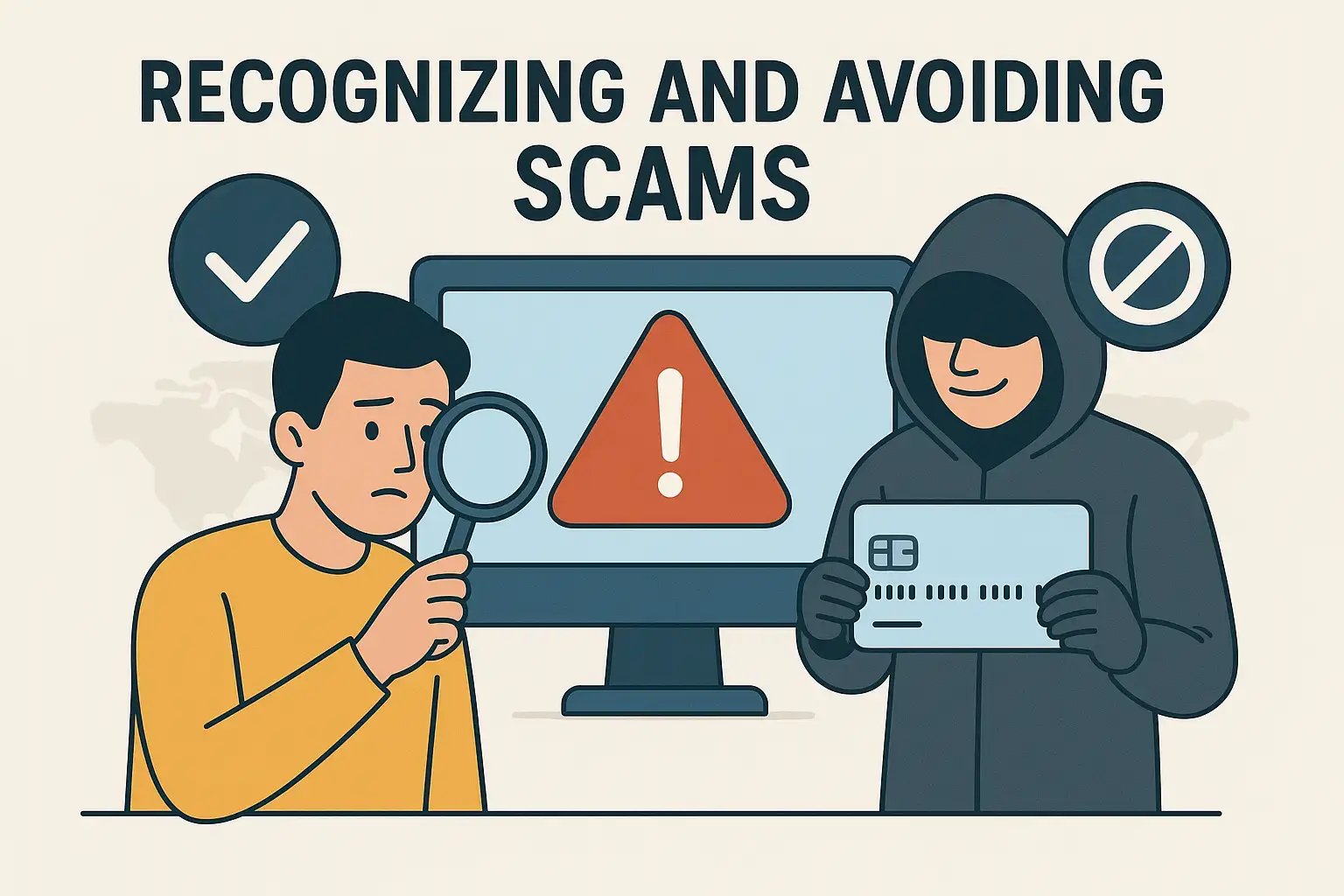
[Section 4 – Spotting Scams Before They Fool You]
Now let’s talk about scams — the #1 online threat most people face.
Here are the red flags to remember:
- Urgency:
If a message says “act now” or “your account will be closed,” it’s a trick. Real companies give time, not panic. - Unknown Senders:
If you don’t recognize the sender or number, delete it — don’t click anything. - Links & Attachments:
Never click a link or open an attachment from someone you don’t know.
Hover your finger (or mouse) over the link — if the address looks weird or unfamiliar, it’s fake. - Requests for Money or Personal Info:
No real bank, government agency, or tech company will ask for your password or money through email or text.
👉 Quick Win Tip:
If you’re unsure whether something is real, stop.
Call the company directly using a phone number from their official website — not the one in the message.
[Section 5 – Safe Browsing Basics]
Now let’s make sure you can surf the web safely and confidently.
Look for the lock:
When visiting a website, check the address bar — if you see a little padlock symbol 🔒, it means the site is secure (it starts with “https”).
Avoid pop-ups that promise prizes or warnings.
Messages like “Your phone is infected!” are fake — just close the window.
Use a trusted browser:
Stick with Chrome, Safari, or Firefox — they update automatically with built-in protection.
Clear your browsing history once a month.
It helps keep your device running smoothly and removes tracking cookies.
You’ll find this option under Settings → Privacy → Clear History/Data.
[Section 6 – Protecting Personal Information on Social Media]
If you use Facebook, Instagram, or other platforms, a few small settings make a big difference.
- Limit what’s public.
Go to Settings → Privacy and make sure your posts are only visible to friends. - Think before you share.
Avoid posting full addresses, travel plans, or daily routines — even innocent details can be used by scammers. - Be cautious with friend requests.
If you don’t recognize someone — even if they seem familiar — check their profile before accepting. - Review app permissions.
Occasionally open Settings → Apps & Permissions to remove any you no longer use.
You’re not being paranoid — you’re being smart.
[Section 7 – Real-Life Example: Confidence Over Fear]
Let me share a quick story.
Joan, 64, got an email saying her “Amazon account was locked.” It looked official, had a logo, and even used her first name.
Instead of clicking, she remembered this rule: Pause and Peek.
She opened her Amazon app directly — everything was fine.
By slowing down, she avoided a phishing scam that had tricked thousands of people.
She told me later, “I realized I’m not afraid of scams anymore — I can spot them.”
That’s digital confidence in action.
[Section 8 – Quick Win Action for Today]
Here’s your Quick Win for this lesson:
- Choose one account — maybe your email or online banking.
- Change the password using the “phrase code” method.
- Turn on two-factor authentication.
- Delete one suspicious email or text message instead of opening it.
That’s it. Four simple steps that instantly make you more secure online.
Write this in your Confidence Tracker Worksheet — because protecting your privacy is one of the most empowering skills you’ll ever learn.
[Section 9 – What’s Next]
Congratulations — you’ve just completed Module 3: Safety & Emergency Essentials.
You now know how to:
- Stay safe anywhere with Life360 and Kitestring
- Prepare your phone for emergencies
- Protect your privacy and peace of mind online
In our next module — Module 4: Staying Connected & Engaged — we’ll shift from protection to connection.
You’ll learn to use apps like WhatsApp, FaceTime, and Google Duo to video chat, share memories, and stay close to the people who matter most.
You’re becoming digitally confident, capable, and secure — and now, it’s time to use that confidence to reconnect with your world.
I’ll see you in the next module!