

Welcome back! I’m really proud of you for making it to Lesson 2.
Now that you understand the big picture of what we’ll cover in this course, it’s time to roll up our sleeves and get comfortable with your smartphone — the foundation for everything else you’ll learn.
Before we dive into apps, we need to make sure your phone feels easy to use and customized for you.
Think of this lesson as a “tune-up” for your phone — we’re going to make it smoother, simpler, and more personal.
By the end of this lesson, you’ll know how to:
- Adjust settings to make your phone easier to see and hear
- Keep your phone updated and running smoothly
- Move confidently around your screen without fear of “breaking” anything
Let’s get started.
[Section 1 – Removing the Fear of Technology]
First, let’s talk about something important — you can’t break your phone by exploring it.
Modern smartphones are built with layers of protection. That means even if you press the wrong button, you’re not going to “mess it up.”
The worst thing that happens? You close an app or move something accidentally — and both are easily fixed.
Think of your phone like a car dashboard: you can press buttons, adjust mirrors, and change the radio station without breaking the car.
That same freedom applies here. So take a deep breath, open your settings, and know that everything you learn from this point forward will give you more control, not less.
[Section 2 – Understanding Your Settings Menu]
Your Settings app is the control center of your phone.
It’s where you adjust how your phone looks, sounds, and behaves.
On both Android and iPhone, you’ll find it as a gray icon that looks like a little gear ⚙️.
Go ahead and open it now if you can.
Once you’re inside, you’ll see a list — things like Wi-Fi, Bluetooth, Notifications, Display, Sounds, and more.
Don’t worry — we’re not going through everything today.
We’re focusing on three key areas that make your daily experience easier right away:
- Display & Text Size – So you can read everything comfortably.
- Sound & Volume Controls – So you never miss calls or alerts.
- Battery & Updates – So your phone stays reliable and fast.
[Section 3 – Display & Text Size]
If you’ve ever squinted at your phone or struggled to read small text, this is the setting that will change your life.
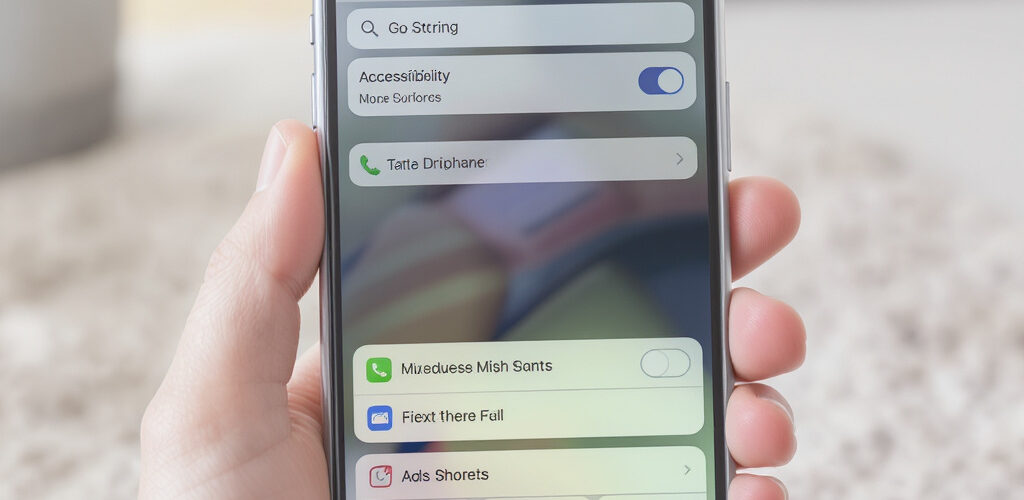
Inside “Display” (on Android) or “Accessibility → Display & Text Size” (on iPhone), you can:
- Increase text size: Move the slider until the words are easy to read.
- Turn on bold text: This makes everything stand out clearly.
- Adjust screen brightness: Too bright strains your eyes; too dim makes it hard to see. Aim for balance.
👉 Quick Win Tip: Most phones also have a dark mode option — white text on a black background. Try it if bright screens bother your eyes at night.
When you can comfortably read your screen, your confidence skyrockets.
[Section 4 – Sound & Volume Controls]
Now let’s talk sound.
If you’ve ever missed a call or notification, it’s probably because your volume settings aren’t where you want them.
Inside Sounds or Sound & Vibration, you can:
- Adjust volume for calls, notifications, and media separately.
- Choose a ringtone you actually enjoy hearing.
- Turn on vibration for extra assurance when you’re in quiet places.
👉 Quick Win Tip:
If you have trouble hearing clearly on calls, check your Hearing Accessibility settings. Many phones let you amplify sound or connect directly to hearing aids.
You can also enable subtitles or captions for videos — a small change that makes a big difference.
[Section 5 – Battery & Updates]
Just like any tool, your phone works best when it’s maintained.
Let’s start with battery health:
- Keep your phone charged between 30–80% whenever possible.
- Avoid letting it drop to 0% regularly — that shortens battery life.
Next, software updates:
These updates fix bugs, improve performance, and add features that keep your device secure.
To check for updates:
- On iPhone: Go to Settings → General → Software Update
- On Android: Go to Settings → System → Software Update
If an update is available, plug in your phone and let it install while you relax.
Keeping your phone updated is one of the easiest ways to avoid slowdowns and glitches.
[Section 6 – Navigating Your Home Screen Confidently]
Let’s make sure you feel completely comfortable moving around your phone.
Here are your key navigation tools:
- Home Button or Gesture: Takes you back to your main screen anytime.
- Recent Apps View: Lets you see what’s open and close anything you’re done with.
- Swipe Down (or Up): Opens quick controls like Wi-Fi, brightness, and flashlight.
Spend a few minutes exploring this. Tap, swipe, and practice going from one app to another.
Remember, if something unexpected happens — press the Home button. It’s your safe zone.
👉 Quick Win Tip: Move your favorite apps — like Phone, Messages, and Camera — to the bottom dock or your first home screen for quick access.
[Section 7 – Making Your Phone Work for You]
You can also personalize your phone to suit you:
- Set a photo you love as your wallpaper.
- Choose bigger icons or folders to keep things tidy.
- Delete apps you never use — less clutter = less confusion.
Your phone doesn’t have to be filled with random tools. It should reflect your daily life — simple, useful, and easy.
[Section 8 – Quick Win Action for Today]
Here’s your task for this lesson — and it’ll only take a few minutes:
- Open your Settings app.
- Adjust your text size and brightness to your comfort level.
- Pick one new ringtone that makes you smile when it rings.
- Check if there’s a software update waiting for you.
That’s it. Four simple steps that will instantly make your phone feel more personal, comfortable, and user-friendly.
Record your progress in your Confidence Tracker Worksheet — you’ve just taken a huge step toward tech independence.
[Section 9 – What’s Next]
Fantastic work today! You’ve now laid the foundation for everything else in this course.
In our next lesson, Lesson 3: Overcoming Tech Fear — Simple Confidence-Building Mindset Tools,
we’ll focus on shifting your mindset so you enjoy learning new technology instead of dreading it.
You’re doing great — one step at a time, your confidence is growing.
I’ll see you in the next lesson, where we’ll strengthen the mindset that keeps you motivated, calm, and capable in your digital journey.