

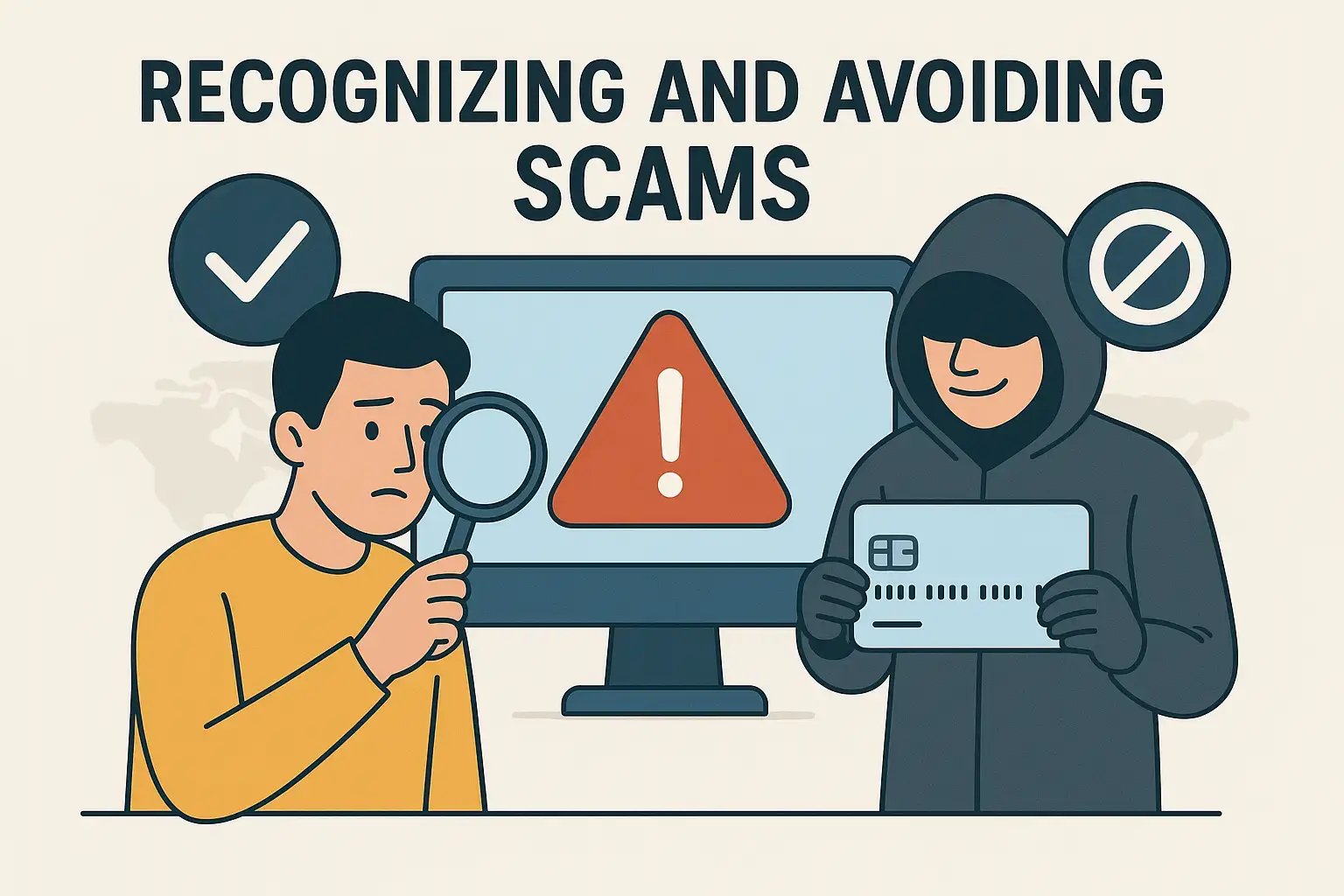
Welcome to Module 5! Up until now, you’ve been building confidence with your iPhone — making calls, sending texts, using FaceTime, maps, reminders, and even new apps. Now it’s time to talk about something that gives many seniors peace of mind: safety and security.
The truth is, while your iPhone is an amazing tool, there are people out there who try to trick users through scams, fake messages, and dishonest apps. The good news? With a few simple habits, you can stay safe and use your iPhone with confidence.
By the end of this lesson, you’ll know how to:
- Recognize common scams and fake messages.
- Protect your personal information.
- Use your iPhone’s built-in security features for peace of mind.
Let’s start with scams and fake messages.
Scammers often try to trick people by pretending to be someone they’re not — like your bank, a delivery service, or even Apple itself. They may send a text, email, or pop-up that says something urgent like:
- “Your account has been locked! Click here to fix it.”
- “You’ve won a prize — claim it now!”
- “We need your password right away.”
Here’s the golden rule: Never click on links or give personal information unless you are 100% sure who it’s from. Banks, Apple, and government agencies will never ask you for your password or Social Security number by text or email.
If you get a suspicious message, don’t panic — just delete it. If you’re unsure, call the company directly using the phone number you already have, not the one in the message.
Next, let’s talk about protecting your personal information.
Your iPhone has tools built in to keep you safe. One of the most important is your Apple ID password. This is the key to your phone — never share it with anyone, not even a family member.
Another important tool is two-factor authentication. With this turned on, if someone tries to sign in as you, your iPhone will alert you and ask for a special code. This keeps strangers out of your account. To check if it’s on, go to Settings → [Your Name] → Password & Security.
Now, let’s look at security features on your iPhone:
- Passcode: Always have a passcode on your iPhone. This protects your information if your phone is lost or stolen.
- Face ID or Touch ID: These make unlocking your phone easier and safer. Only your face or fingerprint will work.
- App Permissions: Some apps ask for access to things like your photos, location, or contacts. Only allow access if it makes sense. For example, Maps needs your location, but a puzzle game doesn’t. You can review these in Settings → Privacy.
Another important habit is to keep your iPhone updated. Apple regularly releases updates that fix security issues. To check, go to Settings → General → Software Update. If there’s an update available, tap “Download and Install.”
Let’s pause and practice together:
- Open your Settings.
- Check your Passcode and make sure one is set.
- Look at your Privacy settings and notice which apps have access to your information.
- If you’re ready, check for a Software Update and install it.
Now, let’s cover some common questions:
- What if I get a call from someone claiming to be from Apple or my bank? Hang up and call the official number you know. Real companies don’t pressure you to act immediately.
- What if I accidentally click a suspicious link? Don’t enter any information. Just close the page and delete the message. If you’re worried, you can always ask a trusted family member for help.
- Do I need antivirus software? No. Unlike computers, iPhones are designed with strong built-in security. Just keep your phone updated and be cautious about what you click.
Here’s your quick win action step:
Today, set a passcode if you don’t already have one. Then, review your Settings → Privacy to see which apps have access to your location, contacts, and photos. Turn off anything that doesn’t make sense. This simple step makes your iPhone safer right away.
Remember, safety is not about being afraid. It’s about being prepared. With just a few habits, you can enjoy your iPhone with complete peace of mind — knowing that you’re in control and protected.
In our next lesson, we’ll go deeper into emergency tools like SOS and Medical ID — features that could one day help you or even save your life.
You’re doing amazing — building confidence, independence, and now security with your iPhone. Keep going, and I’ll see you in the next lesson!