

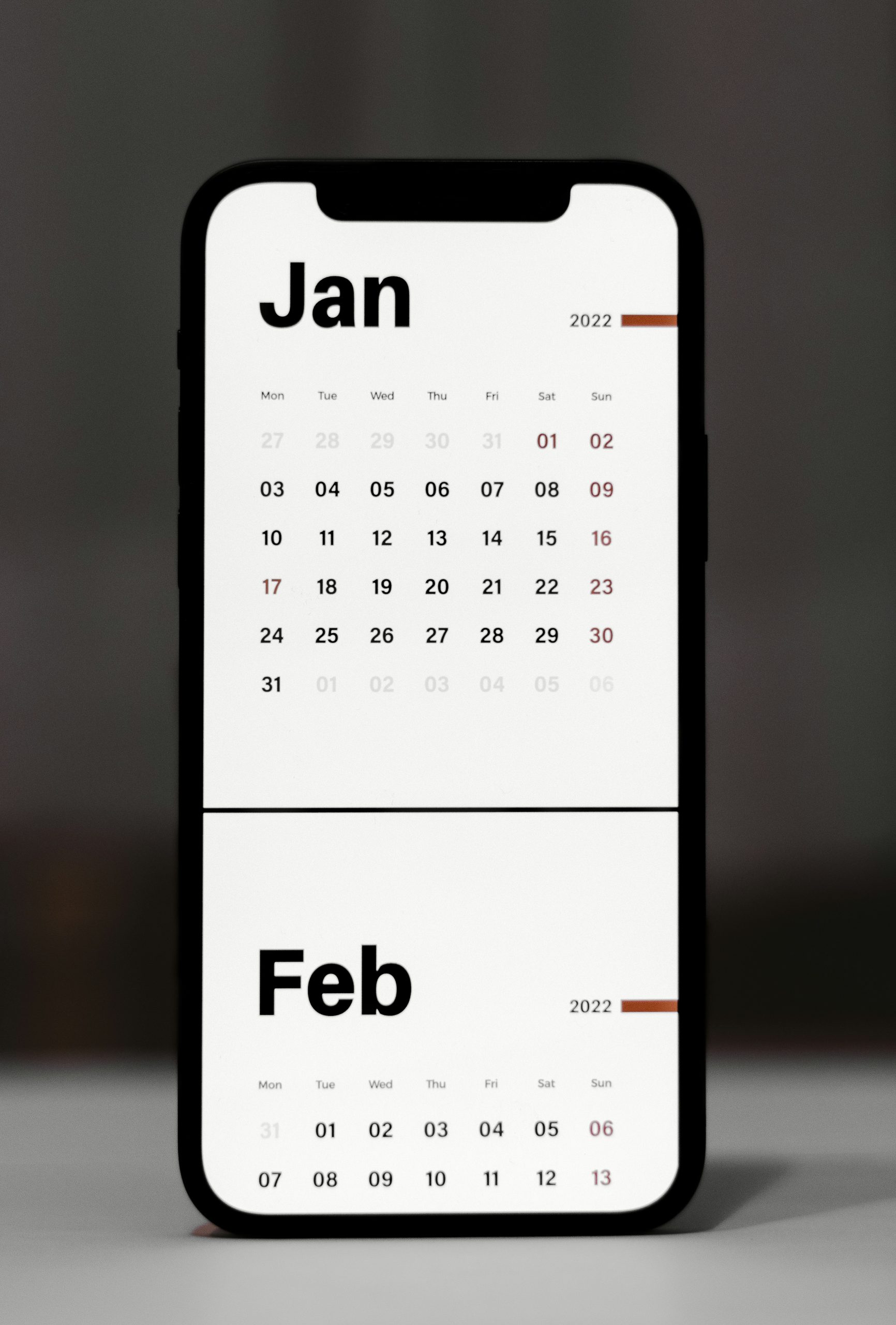
Welcome back! In the last lesson, you learned how to use Maps to get directions — a big step toward independence. Now we’re going to explore another powerful feature that keeps your days organized: the Calendar and Reminders apps.
By the end of this lesson, you’ll know how to:
- Add an event to your Calendar.
- Set up Reminders so you don’t forget important tasks.
- Use alerts and notifications to stay on track effortlessly.
Let’s begin with the Calendar app.
Find the Calendar app on your iPhone — it looks like a white square with the current date written in red and black. Tap it to open. You’ll see a view of the month, with today’s date highlighted.
Now, let’s practice adding an event. Tap the “+” button in the top-right corner. A new screen will appear where you can enter the event details. For example, let’s add a doctor’s appointment.
- In the Title box, type “Doctor’s Appointment.”
- Under Location, type the address of the clinic (optional, but handy if you want Maps directions).
- Choose the Date and Time. Tap “Starts” to set when the appointment begins, and “Ends” to set when it finishes.
- Then, tap Add Alert. This is the magic part — your iPhone will notify you before the event. You can choose 1 hour before, 1 day before, or even 1 week before.
Once everything looks good, tap “Add” in the top-right corner. Congratulations — your first event is saved!
Now, every time you open your Calendar, you’ll see that appointment. And when the alert goes off, you’ll get a notification on your screen reminding you.
Next, let’s explore the Reminders app.
Reminders are perfect for everyday tasks — things like “Pick up milk,” “Take medicine at 8 PM,” or “Call Sarah.” Find the Reminders app — it looks like a white square with colored dots on the left. Tap it to open.
To create a new reminder, tap “New Reminder” at the bottom. Type what you want, like “Take medicine.” Now, tap the little “i” button next to it to add details. You can set a date and time, so your iPhone will alert you exactly when you need to act.
For example, let’s set one for medicine:
- Type “Take medicine.”
- Tap the “i.”
- Toggle on “Remind me on a day.” Choose today’s date.
- Toggle on “Remind me at a time.” Choose 8:00 PM.
- Tap “Done.”
Now, at 8 PM tonight, your iPhone will ping you with a reminder. No more forgetting!
Another powerful option is location-based reminders. For example, you can set a reminder that says, “Buy milk” and tell your iPhone to remind you when you arrive at the grocery store. When you walk in, your phone buzzes with the reminder. This is especially helpful for errands.
Let’s pause and practice together:
- Open your Calendar app and add one event — maybe a family birthday or an appointment.
- Set an alert for it.
- Open the Reminders app and create one reminder for today, with a time attached.
- Wait for your iPhone to notify you, and notice how it feels to have your phone do the remembering for you.
Now let’s answer some common questions:
- What if I forget to check my Calendar? That’s okay — that’s why alerts exist. Even if you never open the Calendar app, your iPhone will still notify you before the event.
- What if I don’t hear the reminder? Make sure your phone’s sound is on and the volume is up. Reminders also show on the lock screen, so you’ll see them even if you miss the sound.
- Can I repeat events and reminders? Absolutely. When you add an event or reminder, look for “Repeat.” You can set it to repeat daily, weekly, monthly, or yearly. This is perfect for things like birthdays or taking medication.
Here’s your quick win action step:
Today, add one real event to your Calendar — like your next appointment — and set an alert for it. Then, add one Reminder — maybe “Drink water at 3 PM” — just so you can see the notification pop up. Once you experience it, you’ll see how powerful these tools are.
Think of your iPhone as your memory assistant. You don’t have to keep everything in your head anymore. With Calendar and Reminders, your phone takes on the mental load, so you can relax and focus on enjoying your day.
In our next lesson, we’ll learn how to use the App Store and useful apps — this is where your iPhone becomes more than just a phone. It becomes a toolbox full of apps that make life easier, more fun, and more connected.
You’re doing wonderfully — keep going, and I’ll see you in the next lesson!