

Welcome back! So far in this module, you’ve learned how to use Maps to get around and how to stay on track with Calendar and Reminders. Now we’re going to explore one of the most exciting parts of the iPhone — the App Store.
Think of the App Store like a giant library. Instead of books, it’s filled with apps — little programs you can download to do almost anything you can imagine. Some apps help you stay healthy, some help you shop, some keep you entertained, and some even connect you to your bank or your church.
By the end of this lesson, you’ll know how to:
- Open and explore the App Store.
- Search for and download an app.
- Identify a few “must-have” apps that make life easier.
Let’s start with the basics: opening the App Store.
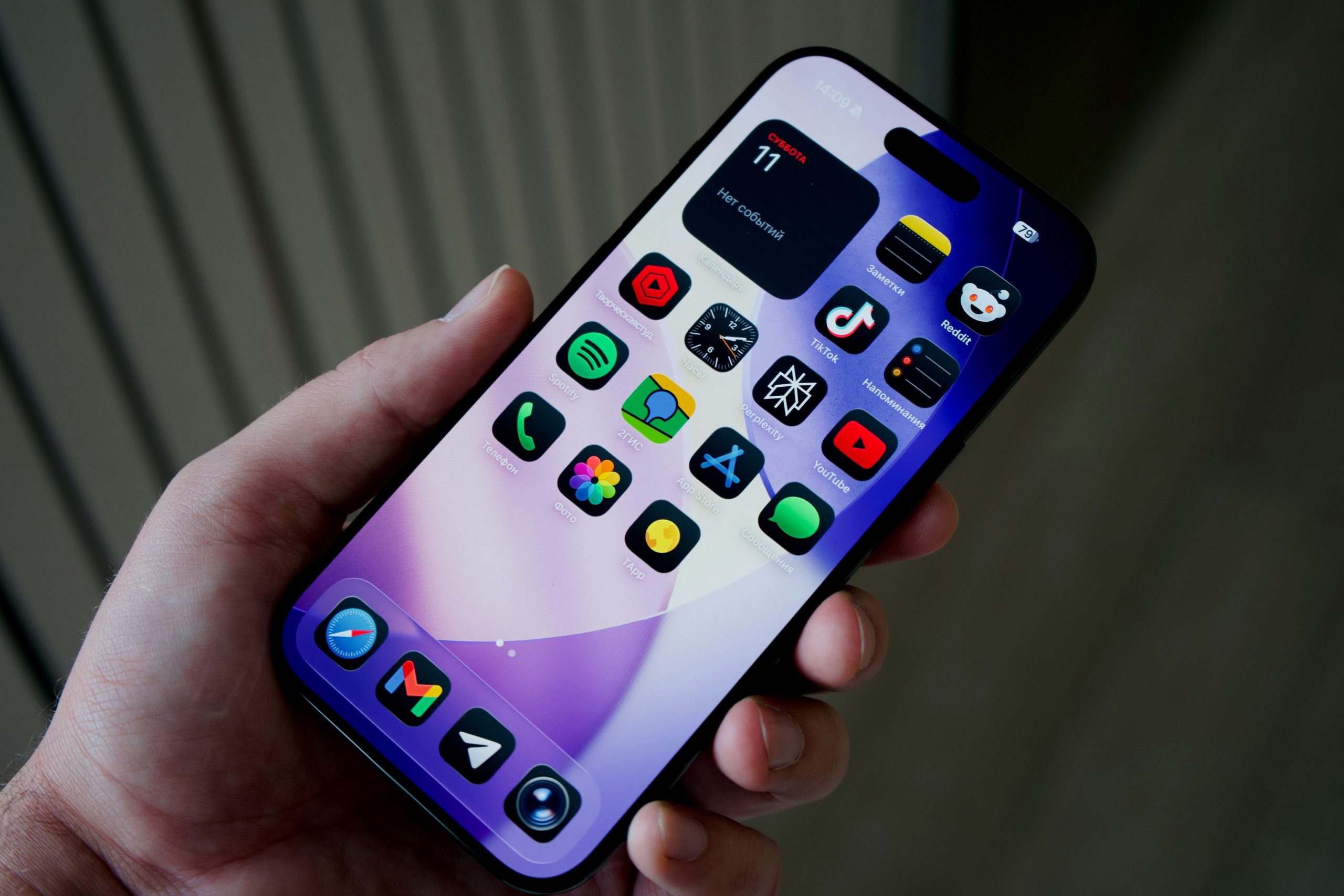
Find the App Store icon on your home screen — it’s blue with a white “A.” Tap it, and you’ll see a welcoming screen with different tabs at the bottom, like Today, Games, Apps, Arcade, and Search.
The easiest way to find something is to use the Search tab. Tap “Search” at the bottom right, and type the name of the app you want. For example, type “Zoom” if you want a video meeting app, or “Kindle” if you want to read books.
When you find the app you want, tap it. You’ll see its details — description, screenshots, and reviews from other users. To download it, tap the button that says “Get.” If you’ve downloaded it before, it might show a little cloud icon instead. You may be asked to confirm with your Apple ID password, Face ID, or fingerprint.
Once it’s downloaded, the app will appear on your home screen, ready to use. Just tap it like any other app.
Now, let’s explore some useful apps for everyday life:
- Communication Apps: WhatsApp, Messenger, or Zoom — perfect for staying connected with family and friends who don’t all use iPhones.
- Health & Wellness Apps: MyChart (to access your medical records), Medisafe (to remind you about medications), or Apple Health (already on your phone).
- Entertainment Apps: Kindle or Libby (for free library books), YouTube (for videos), Spotify or Apple Music (for music).
- Shopping Apps: Amazon, Walmart, or Instacart — making it easy to order groceries or household items right from home.
- Faith & Community Apps: Many churches, community groups, or local organizations have their own apps where you can watch services or get updates.
Here’s a tip: you don’t need hundreds of apps. Just pick the ones that fit your lifestyle. Too many apps can feel overwhelming, so start with one or two that truly make life easier or more fun.
Now, let’s practice together:
- Open the App Store.
- Tap the Search tab.
- Type “Weather” or another simple app.
- Tap “Get” and download it.
- Once it appears on your home screen, open it and try it out.
That’s it — you’ve installed your first app!
Now let’s talk about staying safe in the App Store.
- Only download apps from the App Store — not from links in emails or websites. This keeps your phone secure.
- Check reviews and ratings before downloading. If an app has thousands of positive reviews, it’s usually safe and reliable.
- Be cautious with paid apps. Many apps are free, but some cost money. Always double-check the price before tapping “Get.”
Here are a few common questions:
- Do apps take up a lot of space? Some do, but most are fairly small. If your phone ever runs low on space, you can delete apps you don’t use.
- What if I forget where my app went? Swipe down on your home screen and type the app’s name in the search bar — it will appear.
- Can I delete apps? Absolutely. Press and hold on the app icon until a menu appears, then tap “Remove App.”
Here’s your quick win action step:
Today, download one new app that excites you. Maybe it’s a communication app like WhatsApp, a relaxation app like Calm, or a fun one like a puzzle game. Then open it, explore, and try it out. Notice how adding just one app expands what your iPhone can do.
The App Store is like a treasure chest. With every app you add, your iPhone becomes more personalized, more useful, and more fun.
In our next module, we’ll dive into something everyone asks about: safety and privacy. We’ll look at how to protect your iPhone from scams, keep your information private, and use features like emergency SOS.
You’re doing incredible — each lesson is another step toward iPhone independence. See you in the next module!