

Title: Using Google Maps for Navigation
Welcome to Module 8! In the last module, you discovered how YouTube can bring entertainment and learning right to your fingertips. Now, we’re moving into daily utility apps — tools that make everyday life easier.
Today, we’ll start with one of the most useful apps: Google Maps. This app helps you get from one place to another, find nearby stores, and even explore new areas.
By the end of this lesson, you’ll know how to:
- Open and use Google Maps
- Search for places and get directions
- Use turn-by-turn navigation
- Explore nearby shops, restaurants, and services
Step 1: What Is Google Maps?
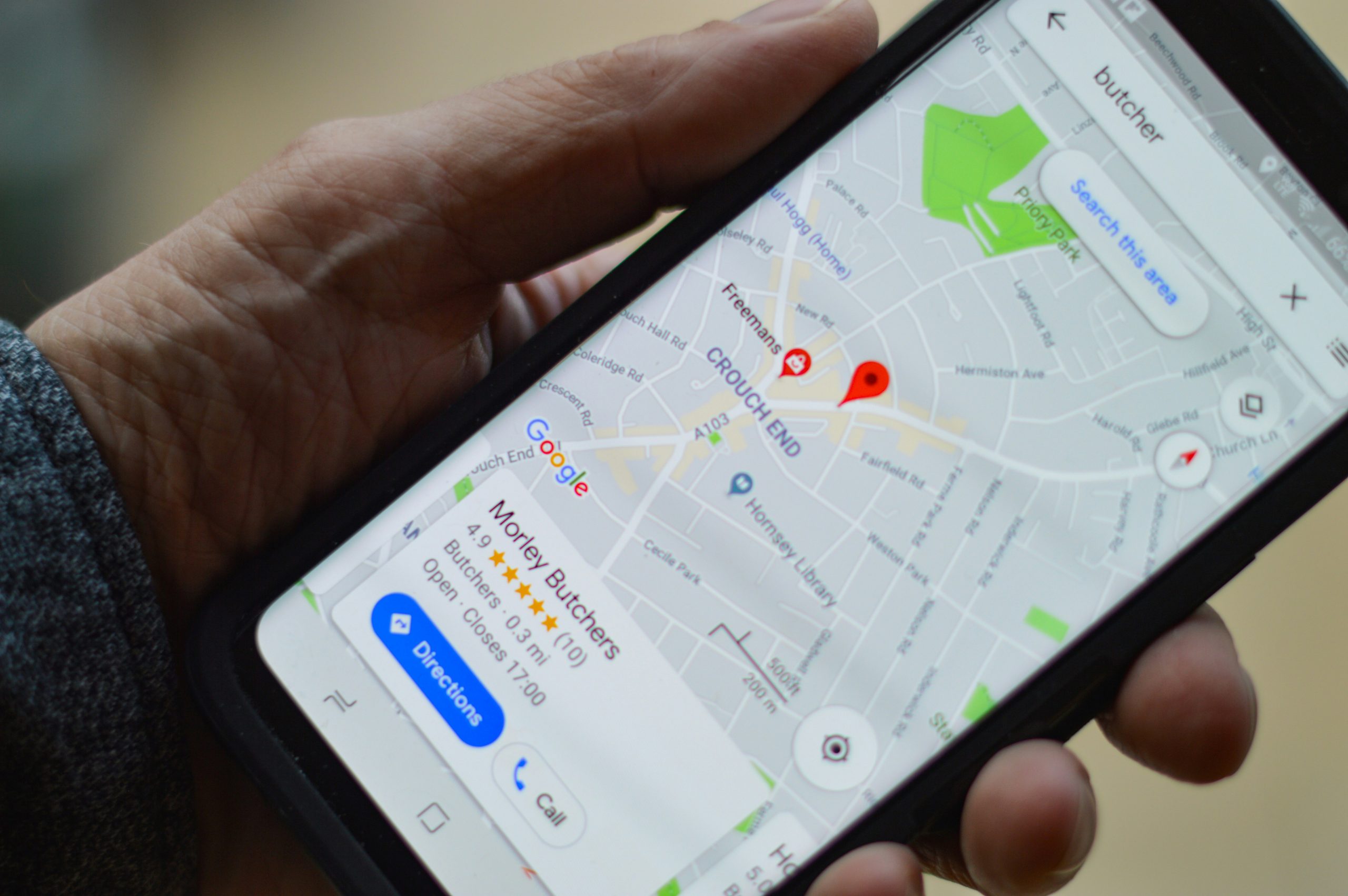
Google Maps is a free app that shows maps, directions, and local businesses. You can use it to:
- Find addresses and landmarks
- Get directions for driving, walking, or public transport
- See real-time traffic updates
- Explore shops, restaurants, and services near you
👉 Quick Tip: Think of Google Maps as a digital GPS and local guide all in one.
Step 2: Opening Google Maps
Most Android phones already have Google Maps installed. Look for the map pin icon with red, green, yellow, and blue colors.
If you don’t see it:
- Open the Google Play Store.
- Search for Google Maps.
- Tap Install.
Step 3: Searching for Places
- Open Google Maps.
- Tap the search bar at the top.
- Type an address, business, or place name (e.g., “Walmart” or “Central Park”).
- Tap the result to see details like address, phone number, hours, and reviews.
👉 Quick Tip: You can also search by voice by tapping the microphone icon and saying, “Directions to the nearest pharmacy.”
Step 4: Getting Directions
Once you’ve chosen a place:
- Tap the Directions button.
- Select how you’re traveling:
- Car (driving)
- Bus/train (public transport)
- Walking
- Ride service (like Uber/Lyft)
- Tap Start to begin navigation.
Google Maps will now guide you step by step.
Step 5: Using Navigation
When navigation starts, you’ll see a map with your route highlighted. You’ll also hear voice instructions, such as “In 500 feet, turn left.”
👉 Quick Tips:
- Keep your phone in a holder if driving.
- Make sure your volume is up to hear directions.
- If walking, glance at the map for arrows pointing your way.
Step 6: Exploring Nearby
Google Maps isn’t just for travel — it’s also for exploring.
- Open Google Maps.
- Tap the Explore button at the bottom.
- Browse categories like Restaurants, Coffee, Groceries, Gas Stations, Hotels.
- Tap one to see nearby options with reviews and directions.
👉 Example: You can quickly find the nearest pharmacy, coffee shop, or gas station.
Step 7: Practice Together
Let’s practice:
- Open Google Maps.
- Search for “nearest grocery store.”
- Tap Directions and view the route.
- Try switching between driving and walking directions.
Now you’ve learned how to travel with confidence using your phone.
Real-Life Example
One of my students, Janet, was nervous about driving to a new doctor’s office. She used Google Maps, and the turn-by-turn directions guided her straight there without stress. She said, “It felt like having a friend in the car telling me where to go.”
Another student, Tom, enjoys discovering new restaurants. He uses the Explore feature to find local diners and always checks reviews before going. He said, “I feel like I’m getting the inside scoop before I even walk in.”
Troubleshooting Tips
- No voice directions: Make sure your phone’s volume is up and not on silent.
- Lost signal: Maps works best with internet, but you can also download offline maps for areas you visit often.
- Battery draining fast: Use navigation while charging in the car.
- Directions seem wrong: Double-check you chose the correct travel mode (walking vs driving).
Step 8: Extra Features
Once you’re comfortable, try:
- Street View: See a 360° image of streets before traveling.
- Save Places: Tap “Save” to bookmark favorite locations.
- Share Location: Let trusted family see where you are (great for safety).
These features make Google Maps even more powerful.
Wrap-Up & Next Steps
Let’s review:
- Google Maps helps you find places, get directions, and explore nearby.
- You can search by typing or speaking into the search bar.
- Navigation gives you turn-by-turn guidance.
- Explore mode shows nearby shops, restaurants, and services.
Your take-action tool for today:
- Search for one place you plan to visit.
- Get directions and practice switching travel modes.
- Explore one “nearby” category to discover something new.
In the next lesson, we’ll look at another everyday helper: ride-sharing apps like Uber and Lyft — making it easy to get a ride when you need one.
You’re doing amazing — I’ll see you in Module 8, Lesson 2: Using Ride-Sharing Apps (Uber/Lyft).